
TikTok Profile Picture Size Converter
Resize any photo to TikTok's profile picture size
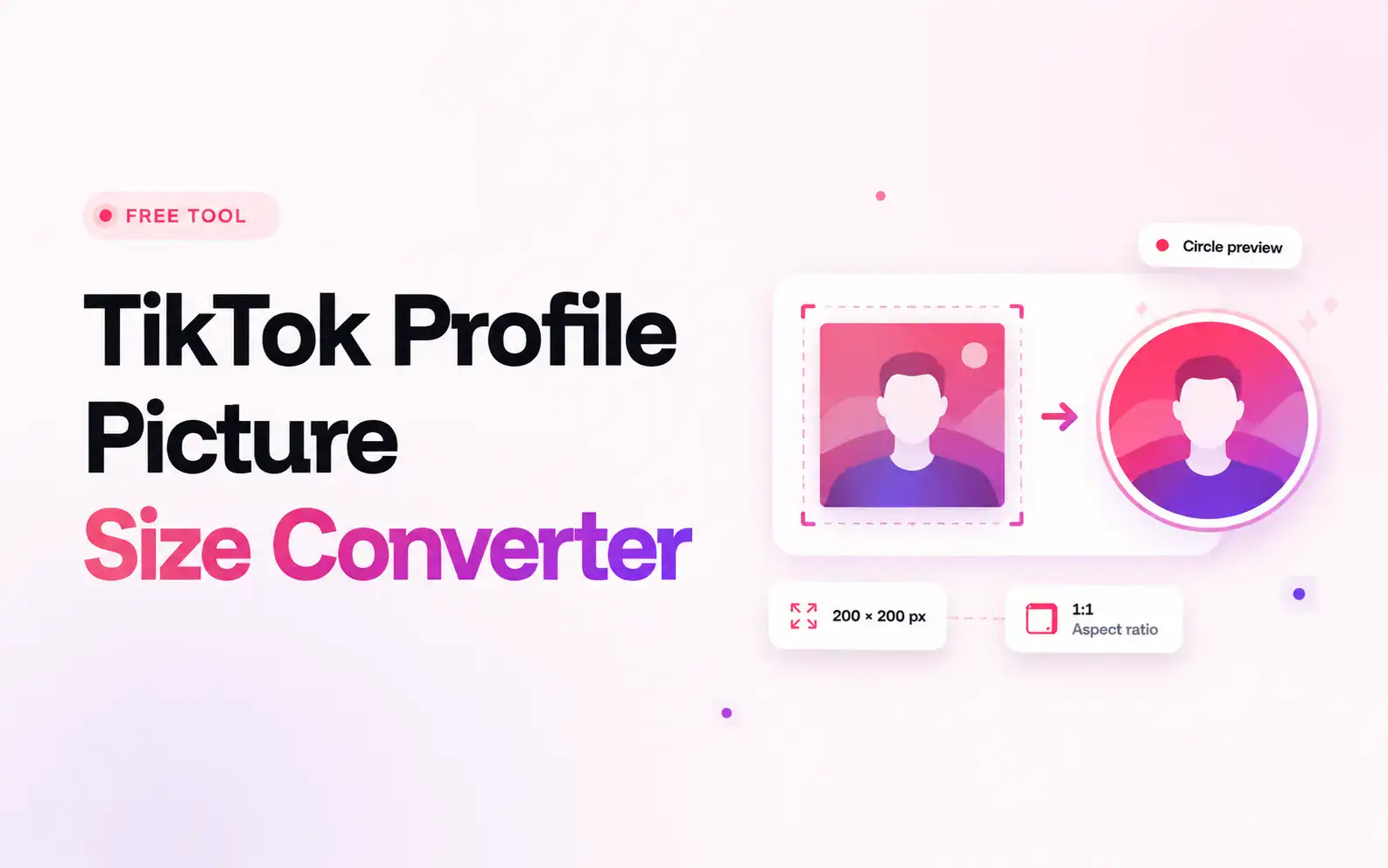
Your profile picture is one of the first things people notice — it sits next to your username on your profile, your videos, comments, and messages. TikTok recommends a square upload of 200 × 200 pixels, which it then displays inside a circular frame across the app. This tool prepares that crop for you, without any photo-editing software.
Square upload, circular display — any detail near the four corners can disappear once TikTok crops it round.- Image dimensions200 × 200 pixels
- Aspect ratio1:1
- Uploaded shapeSquare
- Displayed shapeCircular
- Supported formatsJPG, PNG, and WebP
How to convert a picture in 3 steps
Upload, adjust, and download a picture at the size you need.
-

Upload your picture
Choose a JPG, PNG, or WebP from your device. Start with a clear image so the resized version stays sharp.
-

Position and crop
Drag your picture to center the subject. Choose Crop to fill or Fit with padding, then adjust Zoom and check the circular guide.
-

Choose a size and download
Select 200 × 200 px for a profile picture or 1080 × 1080 px for a larger square. Choose JPG, PNG, or WebP, then click Download.
Built for fast, private profile picture resizing
-
№ 01
Automatic sizing
No need to calculate dimensions or aspect ratios by hand. The tool prepares your image at TikTok's recommended 200 × 200-pixel size for you.
-
№ 02
Safer cropping
Choose exactly which part of the image stays visible — especially useful for faces, logos, illustrations, and pictures containing text.
-
№ 03
Natural proportions
The aspect ratio stays locked while you zoom and reposition, so faces and objects never end up stretched, squashed, or distorted.
-
№ 04
Works in your browser
No app or desktop editor to install. Open it on Android, iPhone, Windows, Mac, or a tablet, and it just works.
-
№ 05
Clean download
The converted picture downloads without a watermark covering your face, logo, or design.
-
№ 06
Fast, no traps
Upload, adjust the crop, pick a size, and download — a handful of steps and you're done. Free and unlimited.
Does resizing affect picture quality?
Reducing a large, clear photo down to 200 × 200 pixels should still produce a good-looking profile picture — the final result depends heavily on your original file. A small screenshot may look blurry once resized, and enlarging a low-resolution image can't restore detail that was never there.
Start clear. Resize once. Keep the original.
Each time a JPG is heavily compressed and re-saved, a little more detail is lost. Whenever possible, crop from the original photo rather than an already-resized copy.
- Start with a clear, high-resolution image.
- Avoid using heavily compressed screenshots.
- Keep the main subject properly in focus.
- Don't repeatedly edit and re-save the same JPG.
- Check the circular preview before downloading.
JPG, PNG, or WebP — which should you use?
-
JPG
A solid default for photographs, selfies, and pictures with many colors. It compresses well, keeping the file small and quick to upload.
-
PNG
Better suited to logos, text, icons, and designs that need sharp edges — and it supports a transparent background.
-
WebP
A useful middle ground between quality and file size, for both photos and graphics, where supported.
-
Not sure? Use JPG
For a regular photo, JPG is usually enough. For a brand logo or a graphic with text, try PNG for a cleaner result.
Resizing with or without cropping
Crop to fill
Fills the entire 200 × 200 square. Some detail near the edges may be trimmed, but there's no empty space — ideal for close-up portraits and selfies.
Fit with padding
Keeps the complete image visible by adding space around it. Nothing is cropped, which suits logos, full-body shots, and designs where every part must stay visible.
Need to straighten a sideways photo first? The Profile Editor adds rotation before you crop.
- Keep your face or logo centered.
- Leave space between the subject and the edges.
- Avoid placing text in the corners — the circle crops them.
- Zoom out a little if the subject fills the whole square.
- For group photos, keep every face inside the central area.
TikTok image dimensions guide
TikTok uses different image sizes depending on where the content appears. A profile picture and a square post both use a 1:1 ratio, but not the same resolution.
| TikTok content | Recommended dimensions | Aspect ratio |
|---|---|---|
| Profile picture | 200 × 200 px | 1:1 |
| Square image | 1080 × 1080 px | 1:1 |
| Vertical image or cover | 1080 × 1920 px | 9:16 |
| Horizontal image | 1920 × 1080 px | 16:9 |
Explore the rest of the toolkit
-
Profile Picture Downloader
Grab any public TikTok avatar in full HD, straight from the source.
-
Profile Editor
Crop, rotate, zoom, and preview inside the circular frame before you export.
-
Stylish Name Generator
Turn your name into cursive, bold, aesthetic, or gaming Unicode designs.
-
Username Generator
Get unique, TikTok-valid @handle ideas based on your niche and tone.
Frequently asked questions
What is the recommended TikTok profile picture size?
The commonly recommended size is 200 × 200 pixels with a square 1:1 aspect ratio.
Is a TikTok profile picture square or round?
The file you upload is square. TikTok then displays it inside a circular frame across most parts of the platform.
Can I resize a TikTok profile picture without cutting anything off?
Yes. Choose the Fit with padding option to place the full image inside a square canvas without cropping its edges.
Why does my TikTok profile picture look blurry?
The original image may be too small, compressed, or out of focus. Start with a larger and clearer file before resizing it.
Ready to resize your picture?
Upload a photo above and download it cropped to TikTok's profile picture size in seconds — no signup.
Try it now →